Set up Automations: rules that react to your shop
Build if-this-then-that rules from templates — send texts and emails, wait, and alert the team — and flip the master switch, which ships paused.
AI & automations13 in this section
Automations are rules that react to shop activity: a trigger (a customer texts in, a quote is accepted, a payment lands, a job is booked, started, ready for pickup, or completed) fires a sequence of steps — send a text, send an email, wait, or notify your team. Customer-facing sends clear the same compliance gates as the agents: opt-outs re-checked at send time, quiet hours, and the per-shop daily cap.
The master switch ships PAUSED
Automations are off shop-wide until you press Turn on automations at the top of the page. It's a deliberate safety switch, separate from each rule's own toggle — nothing sends while paused, no matter how many rules are switched on.
From zero to your first automation
- 1
Start from a template
The template gallery covers the most common shop automations — pick one and it opens pre-filled in the builder at /automations/new.
- 2
Tweak it in the builder
Choose the trigger, adjust the steps and their wording, and add conditions if the rule should only fire sometimes. Save when it reads right.
- 3
Turn the rule on
Each automation has its own On/Off toggle on its card — new rules don't fire until you flip it.
- 4
Flip the master switch
With the shop-wide switch running and the rule enabled, matching activity starts the automation within your quiet hours and daily cap.
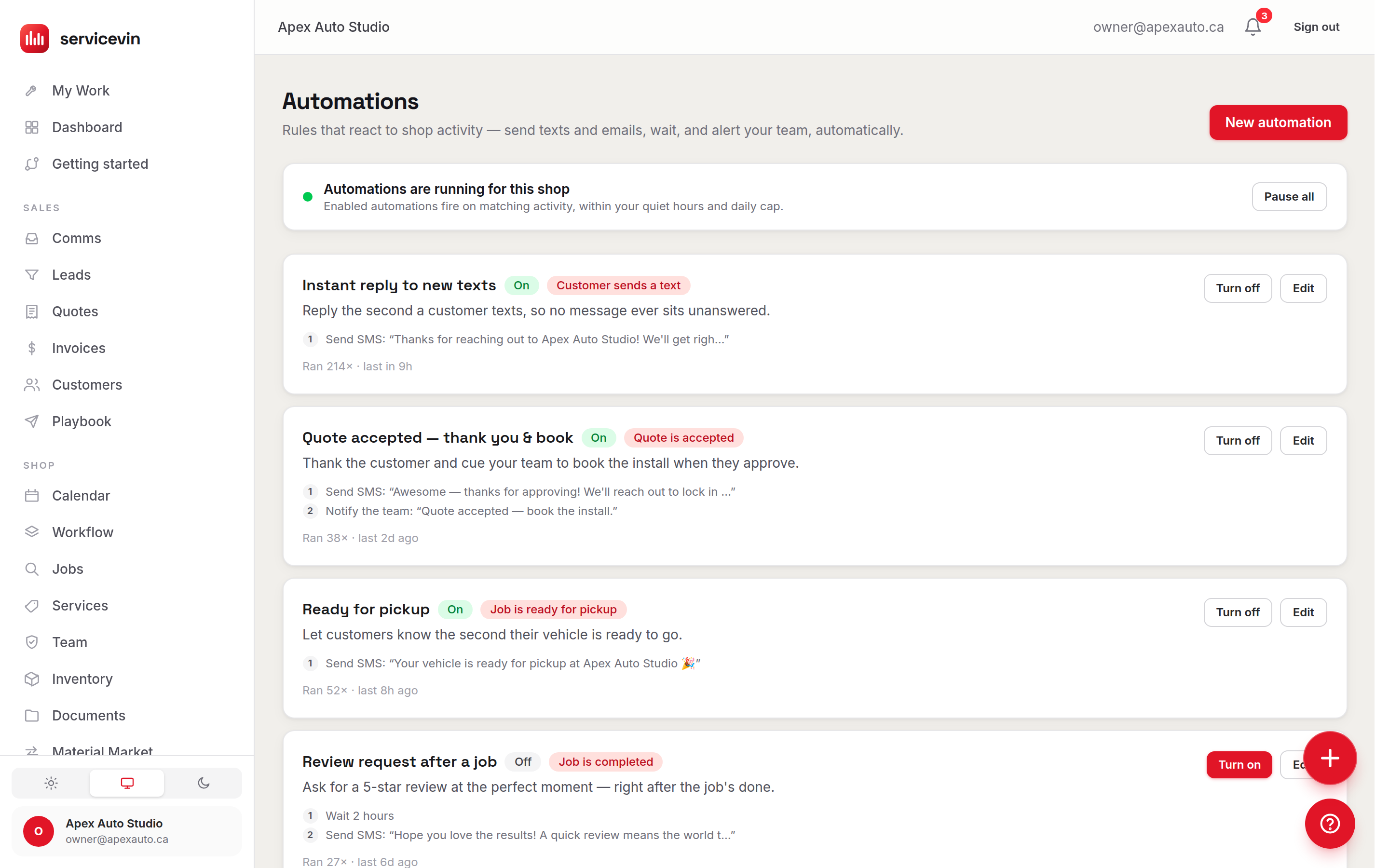
Every execution is logged. Each rule's card shows its run count and last run, and the Recent activity list shows the latest runs across the shop with a status badge: completed, running, skipped (conditions or gates said no), or failed.
Troubleshooting
Runs keep landing as “skipped”.
Why: That's the engine declining on purpose: conditions didn't match, or a compliance gate (opt-out, quiet hours, daily cap) blocked a send.
Fix: Open the rule and loosen its conditions, or check the messaging gates — skipped is a decision, not an error.
Text steps fail while email steps work.
Why: SMS steps need the messaging rail (Twilio, a number, the A2P toggle) just like the agents do.
Fix: Finish Settings → Messaging; see the texts-not-sending guide if it still fails.
Common questions
Automations vs. AI Agents — what's the difference?
Agents are opinionated specialists with their own drafting and judgment; automations are exact rules you compose yourself. Use an agent when you want it written for you, an automation when you want your precise words on your precise trigger.
Can a tech create or toggle automations?
No — viewing is open to members, but creating, editing and toggling are manager-only.
Will one slow automation delay the others?
No. Each matching rule runs independently, so a long wait step in one never blocks another.