The workflow board & the wall display
Every active job as a card in its production stage — drag to advance it — plus the fullscreen wall display for a shop-floor TV.
Shop operations11 in this section
The Workflow board is production at a glance: every non-canceled job as a card in its stage column, from intake to completed. Drag a card to move it to another stage; on a tablet use the card's menu instead. It's visible to every role — techs and installers see the same board managers do, so the whole shop shares one picture of the day.
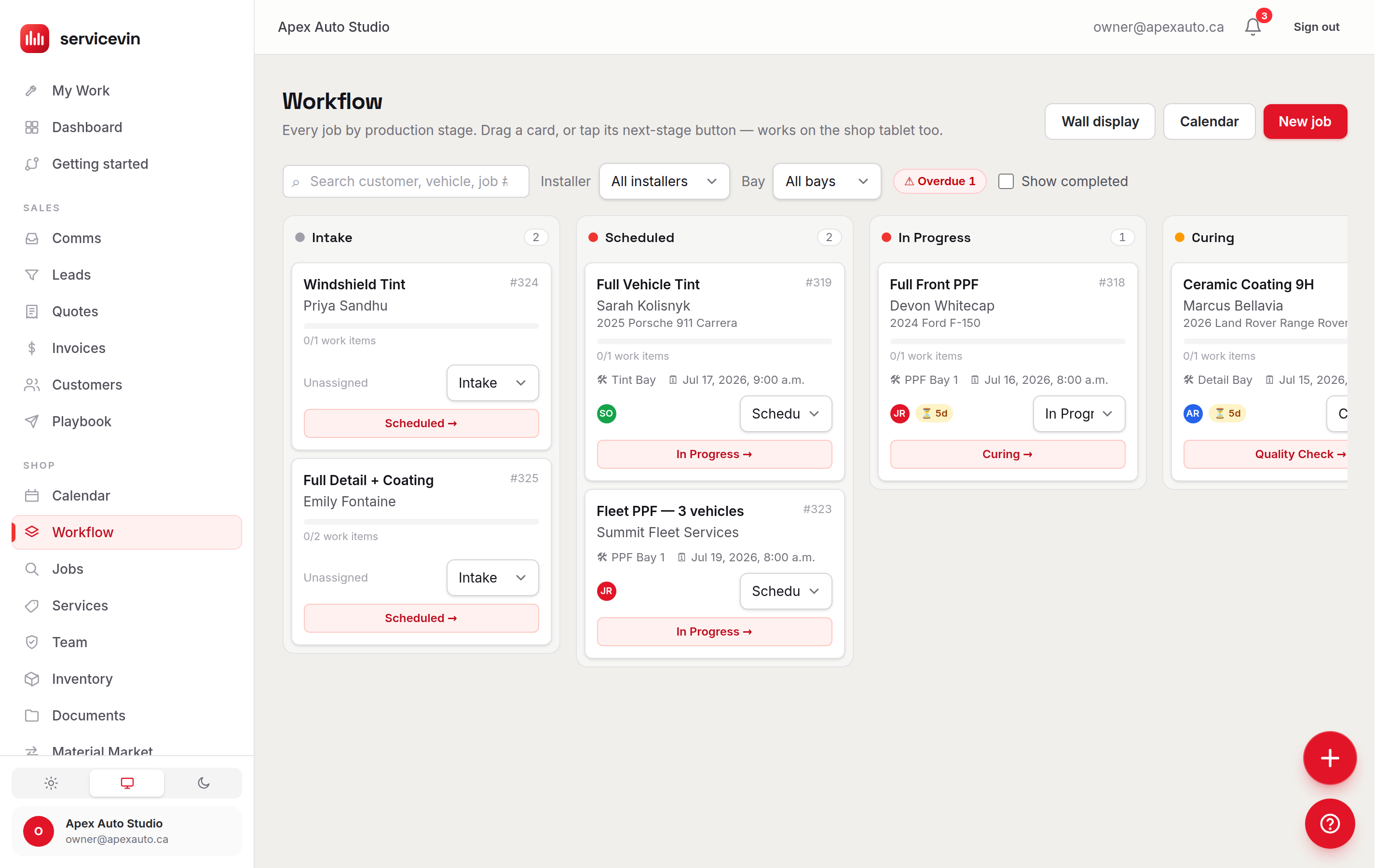
The production stages
Each card carries the job's number, title, customer and vehicle, its bay and assignee, the scheduled time, work-item progress and photo count. A rush job shows a red flag, and a job past its scheduled end while still in live production is marked overdue. Canceled jobs drop off the board entirely — cancellation is an off-ramp, not a column.
The Wall display button opens /wall: the same jobs, fullscreen and high-contrast for a TV on the shop floor. It strips the sidebar, shows only the live-production lanes — Scheduled through Ready — and refreshes itself, so it can run unattended all day. Rush flags and overdue highlights read from across the bay; Exit returns to the board.
Troubleshooting
A job disappeared from the board.
Why: It was canceled — canceled jobs never appear on the board.
Fix: Open the job from its customer record or a linked quote/invoice if you need it back; active jobs always have a column.
A job is on the board but not on the wall.
Why: The wall shows live production only — Intake and Completed lanes are deliberately off the TV.
Fix: Nothing to fix: move the job to Scheduled (or beyond) and it appears on the wall.
Dragging cards doesn't work on the shop tablet.
Why: Touch screens often don't fire HTML5 drag events.
Fix: Use the menu on the card to change its stage — same result, reliable on any device.
Common questions
Who can see the workflow board and the wall?
Everyone with a login, techs included — both are part of the role-neutral core alongside My Work, Calendar and Documents.
Does the wall need someone to refresh it?
No — it auto-refreshes on its own. Put a browser on the TV, open /wall, and leave it.