The calendar: bookings, events & the day's route
Month, Week and Map views of every booking and shop event — drag to reschedule, click a slot to book, all in your shop's timezone.
Shop operations11 in this section
The Calendar is the shop's time: every booking, plus shop events — meetings, holidays and time off. Switch between Month, Week and Map with the toggle in the top right, and use New booking (or click any empty day or slot) to put work on the schedule. Everything is anchored to your shop's timezone: dragging a booking preserves its wall-clock time and duration, so viewing the calendar from another timezone can never shift your day.
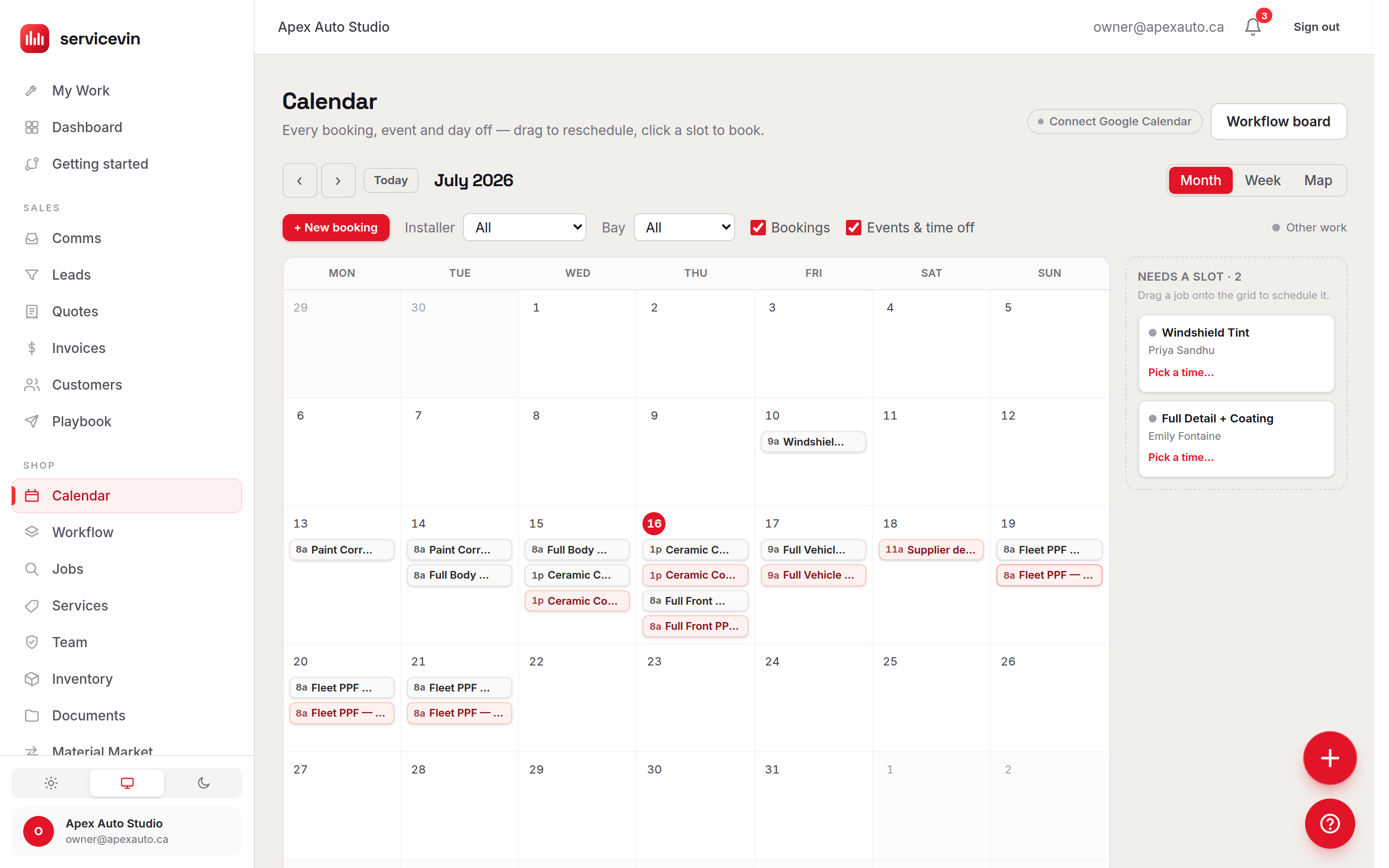
The three views
Working the grid
- 1
Reschedule by dragging
Drag a chip to a new day (Month) or slot (Week). The move is optimistic — the chip jumps immediately and snaps back if the server refuses it, e.g. when the target bay is already booked. On a tablet, use the ⋯ menu on the chip instead; touch drag-and-drop is unreliable on shop-floor hardware.
- 2
Create from an empty slot
Click an empty day or slot to quick-create either a booking prefilled to that time, or an event — meeting, time off, or an all-day holiday that blocks booking — without leaving the grid. The New booking button does the same for any time you pick.
- 3
Schedule the unscheduled
Jobs without a date (accepted quotes auto-convert into unscheduled jobs) wait in the Unscheduled tray beside the grid — drag one onto a day to book it.
The Google Calendar chip
The chip next to New booking shows your Google Calendar sync: green with a last-synced time when connected, or Connect Google Calendar linking to Settings → Integrations when it isn't. It's a status indicator — the sync itself is configured in the Integrations hub.
Troubleshooting
I drag a booking and it snaps back where it was.
Why: The server rejected the move — most often the target bay already has a booking in that window (the database-level double-booking guard).
Fix: Pick a different bay or time, or clear the conflicting booking first. The chip reverting is the guard working, not a glitch.
Map view says "No mobile stops this day" even though the day is booked.
Why: Map view only plots bookings marked Mobile with a service address — in-shop bookings stay on the grid.
Fix: Open the booking and set its location to Mobile with the customer's address; it then appears as a numbered stop.
Drag-and-drop does nothing on the shop tablet.
Why: HTML5 drag events often don't fire on touch screens.
Fix: Use the ⋯ menu on the chip — it opens a reschedule dialog that works everywhere.
Common questions
Which timezone does the calendar use?
Your shop's timezone from Settings — not the viewer's. A 9:00 booking stays 9:00 shop time no matter where it's viewed or dragged from.
How do I block a day off from booking?
Quick-create a holiday event on that day — holidays are all-day blocks that keep new bookings out. Personal time off works the same way per person.
Does the map view re-order my route automatically?
No. When a shorter stop order exists (more than ~0.5 km saved) it's shown as a dashed suggestion with the savings — you decide; nothing reschedules itself.