Where booking slots come from
The storefront computes open times from your real bays, team rosters and calendar — here's the math, the two knobs, and how double-booking is prevented.
Online booking4 in this section
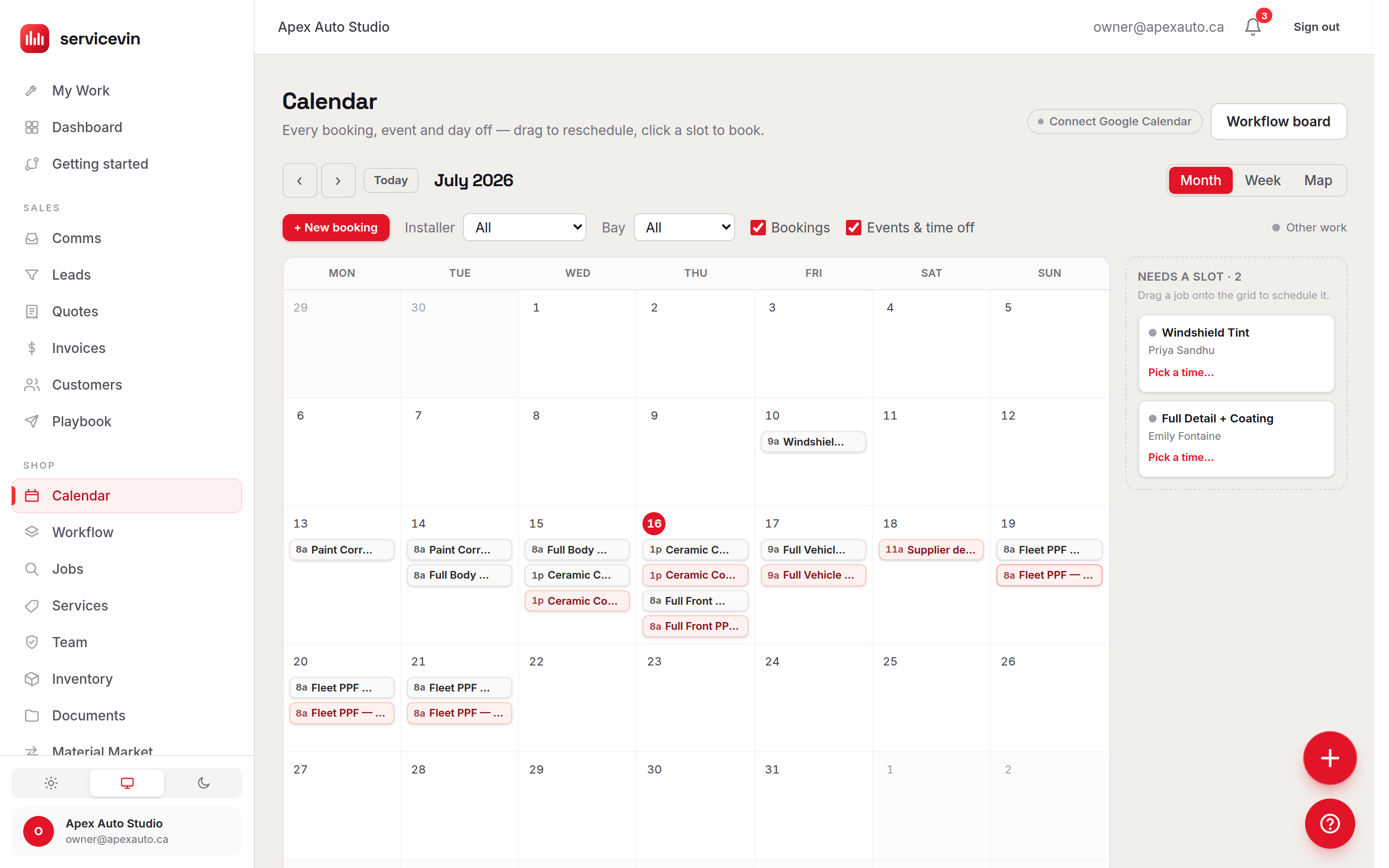
The storefront has no calendar of its own. Every slot it offers is computed live from the same picture of your shop the scheduler uses: your bays (Services → Stations), your team's working hours and time-off (Team), and everything already sitting on the Calendar. Customers only ever see times the shop can genuinely take — which is also why keeping those three pages current is what keeps slots accurate.
What must be true for a time to show
Two knobs shape the grid, both in the Availability card of Settings → Online booking: lead time — the minimum notice before the earliest bookable slot (default 2 hours) — and the booking horizon — how far ahead customers can book (default 14 days, up to 60). Each slot's length is still computed from the service (the labour hours of the tier matching the customer's vehicle type, falling back to the service's default duration) — that is what sizes the window your calendar reserves and how late in the day a drop-off can start. It is never shown to the customer, and a visit longer than your whole working day no longer blocks the grid — the customer just picks a drop-off time and the work carries into the next day.
The storefront never promises a finish time
Customers pick a drop-off time and nothing else — no duration on a service card, no "ends 11:00 AM" under a slot, no end time in the confirmation, the calendar file or their live job page. A car turns out worse than the photos, a panel needs a second pass, the day runs long; an estimate shown to a customer becomes a promise you have to keep. Your day is sized by bays instead — one appointment per bay per day unless you raise it — so the bay is theirs for the day and you tell them when the car is genuinely ready.
Two people can't grab the same slot
Availability is checked when the page renders and re-checked server-side at submit. If someone else takes the time in between, the customer sees "that time was just booked" and is bounced back to a refreshed grid — the double-booking never lands. Online bookings also arrive without a bay assigned, and the math counts them against every capable bay until you assign one, which errs on the safe side.
Troubleshooting
The storefront shows no times at all, on any day.
Why: No active stations exist, the service is restricted to bays that are gone, or your scheduling hours never overlap a slot of the service's length.
Fix: Add or reactivate bays in Services → Stations, review the service's bay restrictions, and check the hours in Settings → Scheduling.
Customers can book on days someone is away.
Why: The absence isn't recorded — availability only respects time-off that's on the person's roster or the calendar.
Fix: Add time-off on the team member's page or a calendar event; shop-wide closures (holidays) block every bay.
Slots feel too scarce or start too far out.
Why: A long lead time, short horizon, or a large buffer between jobs is trimming the grid.
Fix: Tune lead time and horizon in Settings → Online booking, and the slot size/buffer in Settings → Scheduling.
A customer picked a time and got "that time was just booked".
Why: Someone else took the slot between page-load and submit — the server-side re-check rejected it rather than double-book.
Fix: Nothing to fix: the customer is shown a refreshed grid to pick again. If it happens constantly, add capacity or widen your hours.
Common questions
Does an online booking claim a specific bay or installer?
No — it lands unassigned, and you place it on a bay and person from the Calendar or Workflow board. Until then it conservatively counts against capacity so nothing else can double-book the window.
Why does the storefront offer times the AI Scheduler wouldn't pick first?
The storefront answers one question per slot — can the shop take this booking? It doesn't rank by margin or preference the way the scheduler does; anything feasible is offered.
Customers say the calendar looks empty but no times show — why?
Slots need more than an empty calendar: an active capable bay, an eligible installer on shift, and shop hours that cover the slot. Check Stations, the team's rosters and skills, and Settings → Scheduling.