Services & stations: the catalog everything reads from
Define a service once — price, cost, time, materials, bays — and every quote, invoice, job and booking page reads from it. Bays make availability real.
Shop operations11 in this section
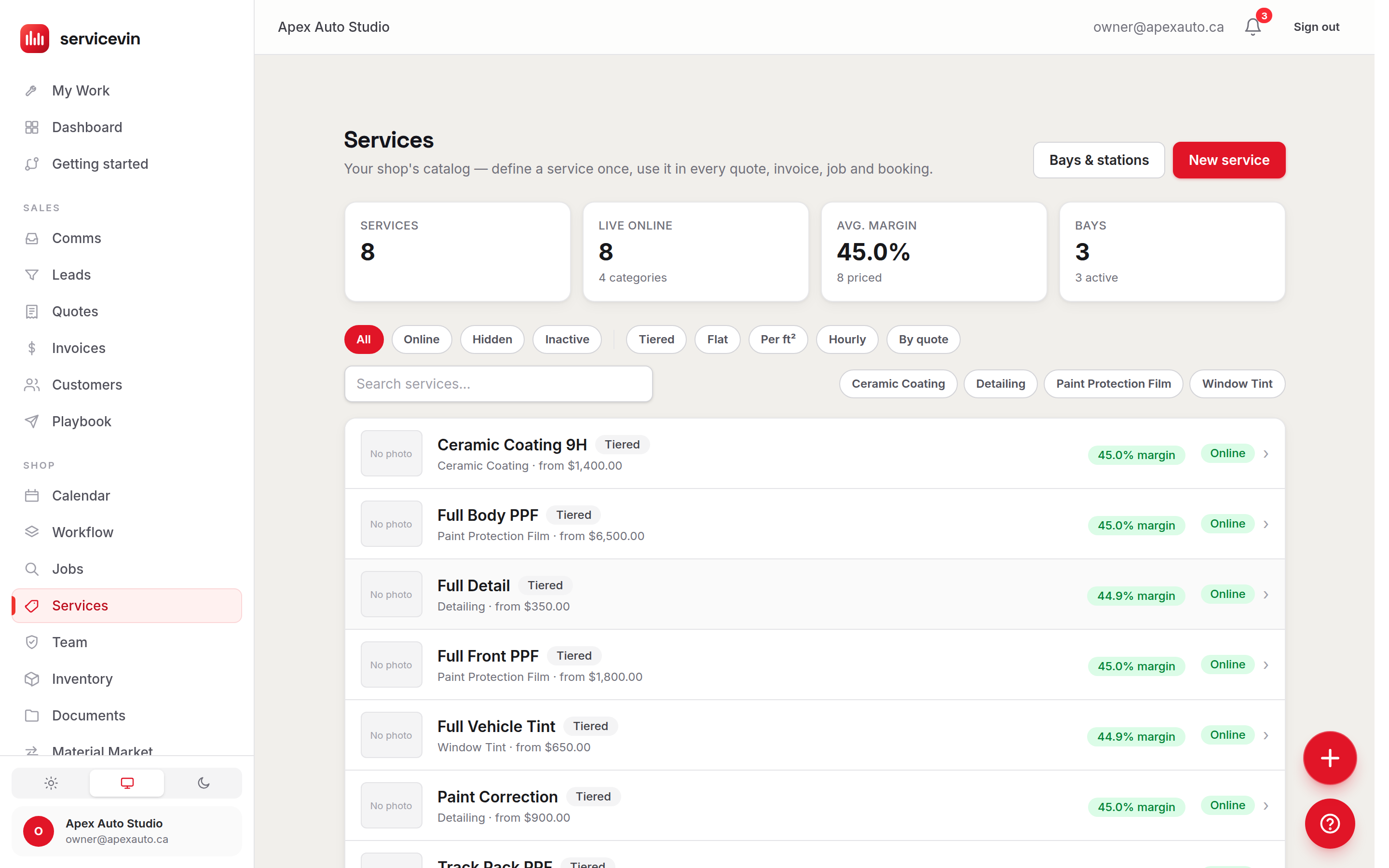
The Services catalog is the single source of truth for what you sell: quotes, invoices, jobs and the online booking storefront all read from it. Each service row carries its pricing model, price, your cost (which unlocks the margin badge), estimated time, linked materials, and the bays it can run in. Define it once, use it everywhere — change it once, and everything new picks it up.
The three statuses
Building a service that works hard
- 1
Pick the pricing model
Flat, by vehicle size, per square foot, hourly — or custom ("by quote") for work you always price by hand. The status tabs and model chips at the top of the catalog filter by all of these.
- 2
Enter your cost
Cost is what turns a price into a margin badge on the row and an average-margin stat up top. A service without cost shows "Add cost" instead — it still sells, you're just flying blind.
- 3
Map it to bays
In the service editor, choose which bays or booths the work can physically happen in — this is what makes availability and scheduling honest.
No bays, no real availability
Services → Bays & stations lists your physical bays. The calendar's double-booking guard, online booking availability and the AI Scheduler all depend on them — the scheduler won't run at all until you have at least one active bay and one service. Two minutes of setup, everything downstream gets smarter.
Troubleshooting
A service doesn't show on the online booking page.
Why: It's Hidden (active but not bookable) or Inactive.
Fix: Open the service and switch it Online. The catalog's status tabs (All / Online / Hidden / Inactive) show you exactly where each one stands.
The margin column just says "Add cost".
Why: The service has a price but no cost, so there's nothing to compute a margin from.
Fix: Edit the service and enter your real cost — labour and materials. The badge (and the catalog's average-margin stat) appears immediately.
The AI Scheduler says it needs setup.
Why: It requires at least one active bay and at least one service to rank slots against.
Fix: Add bays under Services → Stations and make sure your services are in the catalog, then revisit the scheduler.
Common questions
What's the difference between Hidden and Inactive?
Hidden services still work everywhere inside the shop — quotes, invoices, jobs — they're just not offered to customers online. Inactive services are retired everywhere.
Do bays limit who can book online?
Indirectly — availability is computed from the bays a service maps to. A service mapped to one bay can only be booked when that bay is free.