Set up your online booking storefront
Turn on your public booking page, choose which services show, and see what customers walk through. Your booking link comes from your business name.
Online booking4 in this section
The storefront is a public page — /book/your-link — where customers pick a service, choose a real open time, leave their details, and pay a deposit, 24/7. It isn't a separate booking system: a completed booking creates a real customer and a real job on your board, so it lands where quoting, scheduling and texting already live.
It's off by default and per shop: until you switch it on, the page is a plain 404. That's by design — nothing about your shop is public until you say so.
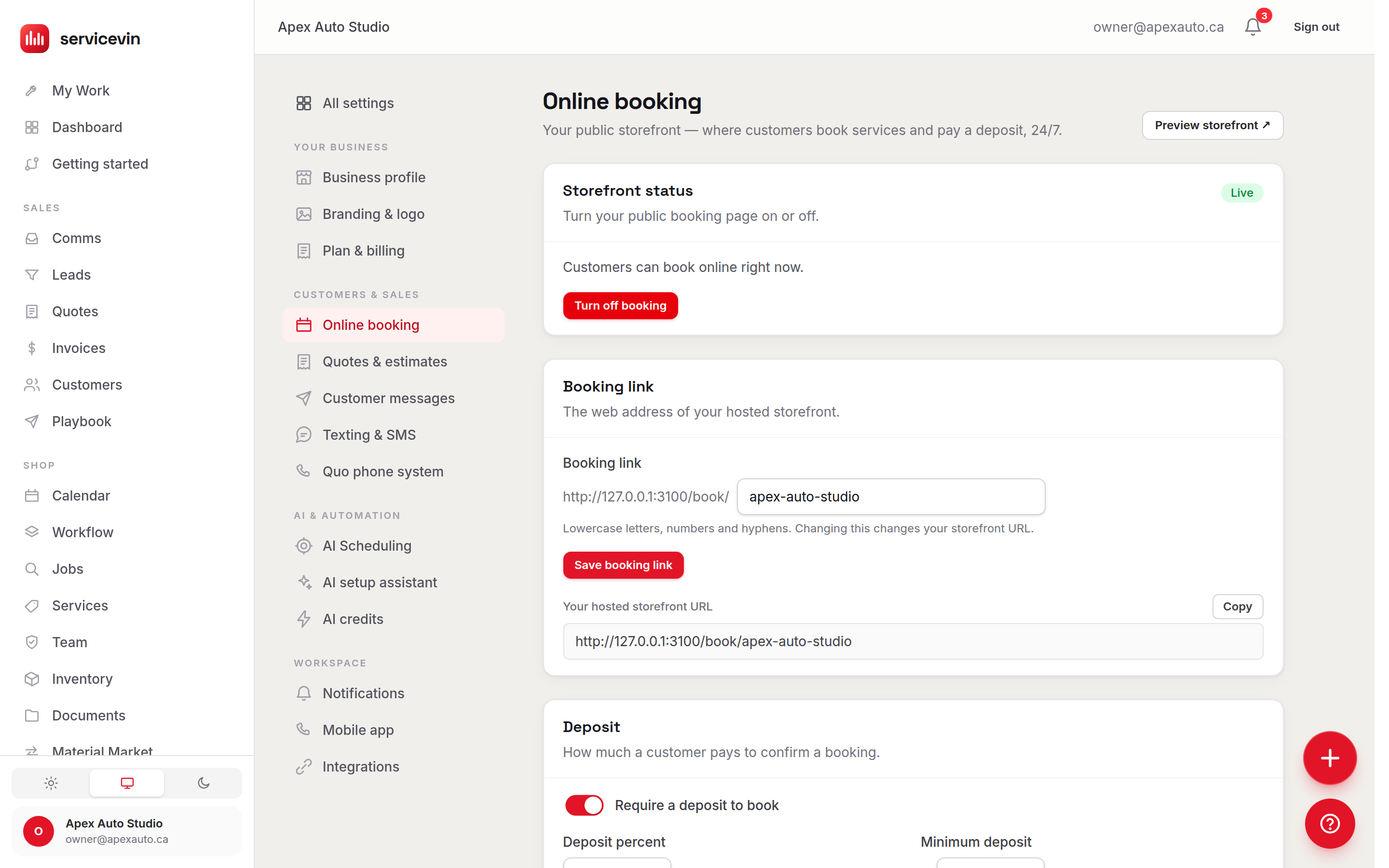
Going live
- 1
Turn it on
In Settings → Online booking, the Storefront status card shows Live or Off. Click Turn on booking — a Preview storefront button appears so you can see the page exactly as customers do. Only owners and managers can change these settings.
- 2
Your booking link
Your booking link comes straight from your business name — e.g. “The Auto Pros” →
book.servicevin.com/the-auto-pros— so it always reads as your shop, and customers can't be sent a mismatched link. To change it, rename your business in Business profile; the link follows. Renaming changes the address, so update anywhere you've already printed or shared it. - 3
Choose which services show
The storefront lists your active services that have the Show on my online booking storefront toggle on (it's on by default — edit any service in Services to hide it). A service also needs a price a customer can see: a base price or vehicle-type tiers. No price, no listing.
- 4
Set the deposit and the window
Two more cards on the same page: the Deposit policy (see Deposits & Stripe) and the Availability lead time / horizon (see Where booking slots come from).
What the customer walks through
It already wears your branding
The page shows your shop name, city, phone, and the logo and accent colour from Settings → Branding. Want to poke at a storefront without going live? The bundled demo at /book/demo is fully interactive and writes nothing.
Troubleshooting
My booking page shows a 404.
Why: The storefront hasn't been turned on for this shop, or the link in hand doesn't match the current booking link.
Fix: In Settings → Online booking, check Storefront status says Live, and copy the hosted URL from the Booking link card.
A service is missing from the storefront.
Why: It's inactive, its "Show on my online booking storefront" toggle is off, or it has no base price and no vehicle tiers.
Fix: Edit the service in Services: make it active, switch the storefront toggle on, and give it a price customers can see.
A booking arrived with no scheduled time.
Why: The customer chose "first available" instead of a slot — the request lands as a lead-stage job with no start.
Fix: That's expected: schedule it from the Calendar or Workflow board and confirm the time with the customer.
Common questions
Does an online booking create a job automatically?
Yes. It creates (or reuses) the customer, saves the vehicle, and inserts a job — scheduled if they picked a time, or as a lead-stage request if they chose "first available". A booking.created event also fires, so automations can send confirmations or notify you.
Can customers book a service I don't want online?
No — only active services with the storefront toggle on and a visible price appear. Everything else stays usable for quotes and jobs internally.
What if two shops want different storefronts?
Everything here is per shop: each shop has its own link, its own on/off switch, its own services and deposit policy.