Import your data from another platform
Bring customers, vehicles and invoice history across from Urable, Tint Wiz, OrbisX, QuickBooks Online, Zoho Books, or any CSV — with a validation report before anything is written.
Reports & data4 in this section
The Data import center moves your shop's history into Service VIN in two passes: Customers & vehicles (contacts, tags, notes, and each customer's vehicles) and Invoices & payments (billing history with statuses, balances and payment records). Picking your old platform — Urable, TintWiz, OrbisX, QuickBooks Online, Zoho Books, or plain CSV for everything else — pre-matches that platform's column names, and each source card tells you exactly where its CSV export lives. Imports run alongside your day; nothing in the shop pauses while data lands.
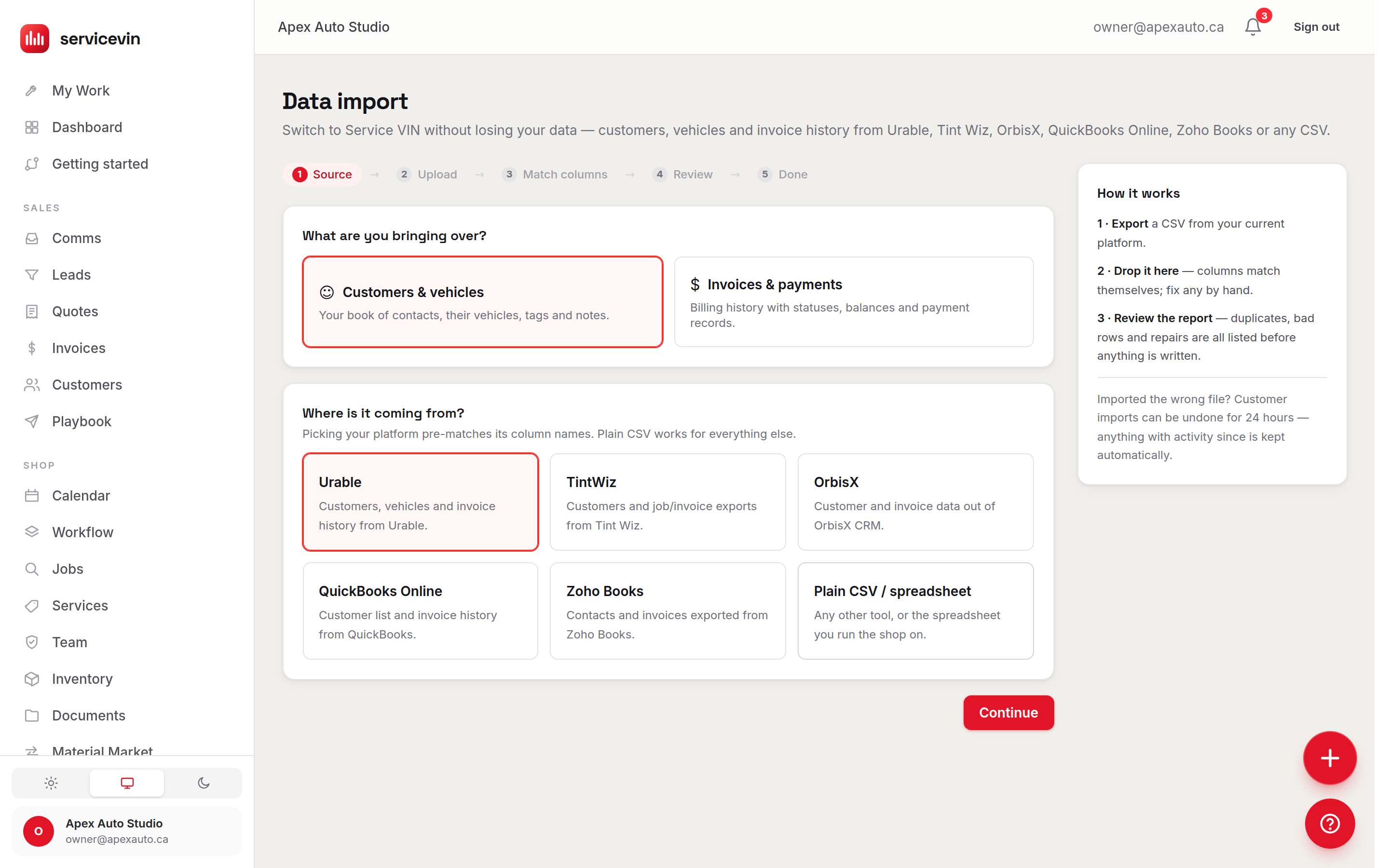
The five-step wizard
- 1
Source
Choose what you're bringing over (customers or invoices) and where from. Start with customers — invoices link to them.
- 2
Upload
Drop the CSV, click to browse, or paste it straight in — up to 8 MB and 5,000 rows per file (split bigger exports and run each part). The first line must be a header row.
- 3
Match columns
Columns match themselves against Service VIN's fields; fix any by hand with the dropdowns. Starred groups are the only hard requirements: a contact column (email, phone or company) for customers; a customer column and an amount column for invoices.
- 4
Review
A dry-run validation report before anything is written: counts of ready, flagged (will import) and skipped (unusable) rows, every issue listed by row — nothing is dropped silently. Options here control duplicate skipping and whether unknown invoice customers get created.
- 5
Done
The results card shows what landed — customers added and vehicles linked, or invoices added, payments recorded and customers created — plus duplicates and skipped rows. Jump straight to Customers or Invoices to see it.
Tips for a clean mapping
Export one file per data type and don't edit the headers — the platform presets match the original column names. Duplicate detection is built in: customers match by email or phone (new vehicles on a known customer still come across), and invoices match by customer + total + invoice date, so re-importing the same file never double-bills. Invoices link to customers by email, then phone, then name — import customers first for the cleanest linking.
Every completed run is written to the shop's event log, and the Recent imports card beside the wizard shows your last five — what kind, which source, how many rows landed and how many duplicates were skipped — so you always know what's already in. The old /customers/import address still works; it now lands on this same import center.
Troubleshooting
"Couldn't read any rows" after uploading or pasting.
Why: The first line of the file isn't a header row, or the file isn't really CSV (e.g. an unconverted Excel workbook).
Fix: Re-export as CSV with headers on line one — in Excel or Sheets, use Save As / Download → CSV.
The Match columns step won't let me continue.
Why: A required group is unmapped — the amber banner names it (contact column for customers; customer and amount columns for invoices).
Fix: Map at least one field in each named group using the dropdowns, then Review import unlocks.
Lots of rows were skipped as duplicates on a first import.
Why: Those customers or invoices already exist — often from an earlier partial import or manual entry.
Fix: That's the importer protecting you. Check the Recent imports card for earlier runs; untick duplicate skipping only if you're certain the data isn't already in.
Common questions
Can I safely re-run the same file?
Yes — with "Skip anything already in Service VIN" checked (the default), rows that match existing customers or invoices are skipped and counted, not duplicated.
Can I import quotes, jobs, or photos?
Quotes and jobs, yes — they're their own kinds in the wizard, alongside customers, invoices, leads and conversations. A job that carries a date goes onto your calendar as well as the jobs board, at the time in the file (9 AM when the file doesn't say one), so the week you're switching over is already booked in. Photos aren't imported.
My old platform isn't on the list — am I stuck?
No. Pick Plain CSV / spreadsheet: any file with a header row works, and the global column aliases already catch common names like Name, Phone, Email and Total.