Import your price list — without typing it twice
Bring your whole catalog across from a spreadsheet, a document, a PDF, your website or a photo. A spreadsheet is read column by column, for free, however long it is.
Typing a price list in twice is the worst hour of setting up new software, so Services → Import doesn't ask you to. Point it at whatever your prices already live in — the CSV your old system exported, the workbook you've kept for years, a Word document, a PDF, your own pricing page, or a photo of the printed menu — and it builds your catalog from it. You review every row before anything is saved.
The short version
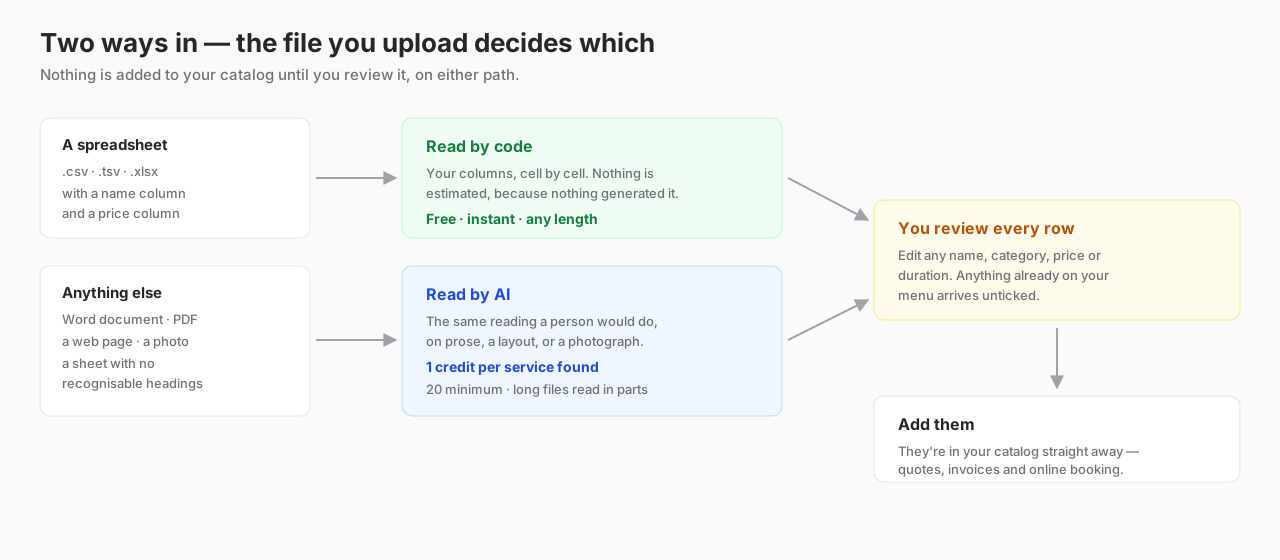
A spreadsheet with a name column and a price column is read straight off your columns: instantly, exactly, and for no credits, no matter how long it is. Everything else is read by AI at 1 credit per service found. If you have the choice, choose the spreadsheet.
Answer two questions first
- 1
How are your prices set?
One price per service — the same number whatever turns up. A price per vehicle size — car, coupe, SUV, truck each have their own. A starting-from price — what you advertise, with the real number quoted per job. Your answer picks the right template and tells an AI read how to treat the numbers it finds.
- 2
Do your prices include tax?
Most shops quote before tax. Saying so keeps the importer from reading a tax-inclusive figure as your base price — it's the single most common reason imported prices come in slightly high.
Then: start from the template
- 1
Download it
On the From a file tab, press Download the template. Which one you get follows your answer above — one price per service, or a column per vehicle size.
- 2
Fill in your services
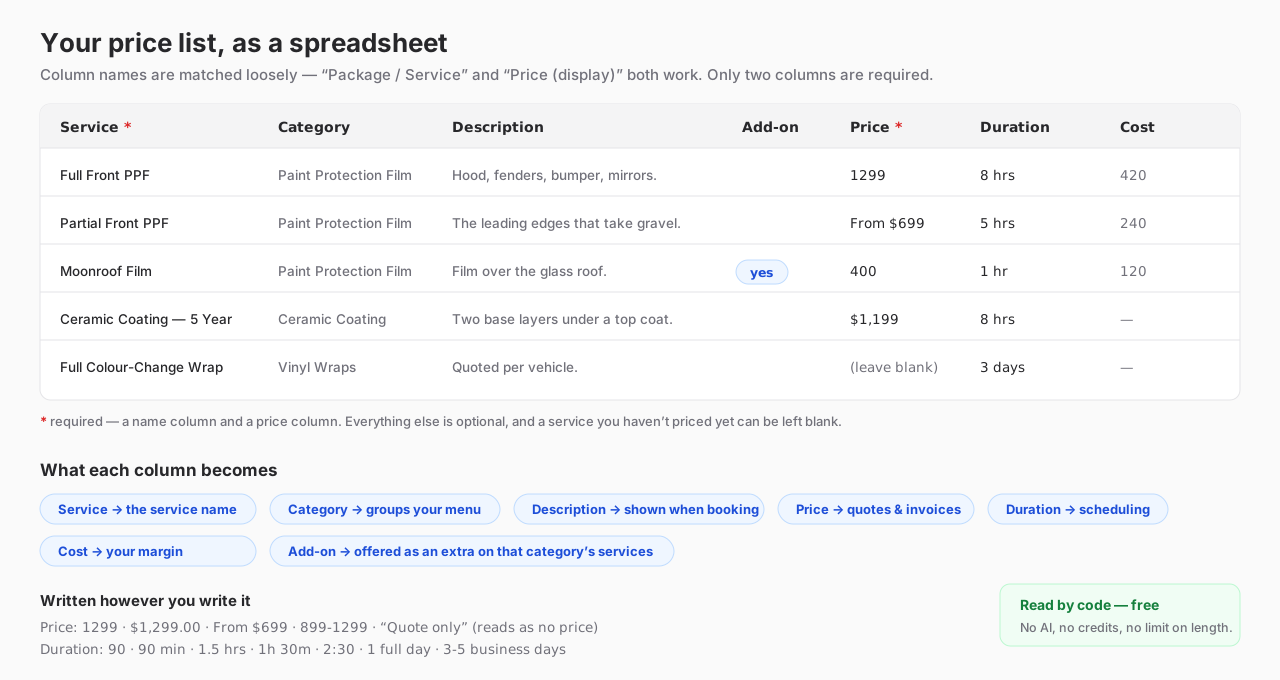
One service per row. Only two columns are required — the service name and its price — and the template arrives with example rows showing the formats that work, including a couple marked
yesin the Add-on column. Delete those before you import. - 3
Save it as CSV
Excel or Numbers: File → Save as (or Export) and choose CSV. Google Sheets: File → Download → Comma Separated Values. An
.xlsxworks too — you don't have to convert it. - 4
Drop it back in
Choose the file on the From a file tab and press Read this file. A sheet in the template's shape always takes the free path, so leave *Have AI read it instead* unticked.
- 5
Review and add
Every name, category, price, cost and duration is editable before anything is written. Untick anything you don't want. Press Add and they're live — quotes, invoices and online booking can all use them immediately.
What each column does
Your headings don't have to match ours
The importer matches loosely. Package / Service, Service Name, Item and Product all read as the name; Price, Price (display), Rate and Amount all read as the price. A title row above your table is skipped, and a heading it can't place is reported back to you by name rather than quietly ignored.
Write your prices and times however you already write them
Section headings work too. If your sheet has no category column, a row with a name and nothing else — PAINT PROTECTION FILM on its own line — becomes the category for the rows beneath it, which is how most people lay a price list out anyway.
Already have the size written into the service name?
Then you don't have to change a thing. A list like The Essential - Car / Coupe / Compact SUV at $399 and The Essential - Truck / Full-Size SUV at $475 comes in as one service with a price per vehicle, not two services with confusingly similar names. Rows are only combined when every one of them names a vehicle size, so Full Detail - Essential and Full Detail - Premium stay the two separate packages they are.
One thing to check when that happens: Service VIN has a single SUV tier, so a list that splits Compact from Full-Size SUV has one more size than the catalog does. The first price is kept for SUV and the import tells you which service it happened on — set the SUV box to whichever number you'd actually quote before you press Add.
## Your add-ons come across as add-ons
Most price lists carry two different things: the services you sell, and the extras a customer adds to one — a moonroof film, a wheel-and-caliper coating, pet-hair removal. Imported as ordinary services, a sixty-service catalog arrives looking like a hundred, and your booking page offers “Headlight Restoration” as though someone would drive in for it alone.
How an extra is spotted — and where it lands
- 1
Write
yesin the Add-on columnThe surest way, and the template has the column ready. Anything else — blank included — is a service.
- 2
Or just lay your list out the way you already do
A row filed under
PPF Add-Ons,Interior ExtrasorTint Upgradesis recognised without a column at all. If you have both, the column wins: anoon a row inside an add-ons section keeps it a service. - 3
A block of extras on one line is split up
PPF Add-Ons … Moonroof film $400 | Door cups $150 | Grille — quote onlybecomes three add-ons at their own prices, not one service called “PPF Add-Ons”. Anything with no price comes across unpriced and is counted in a note — no number is ever invented for you. - 4
They're filed with the work they belong to
An add-on under
PPF Add-Onsis saved into your Paint Protection Film category, not a category of its own — that's what puts it in front of the customer booking a PPF job. Your review screen still shows the category your file used. - 5
You confirm before anything is written
The review groups rows by category, ticks the ones it read as extras, and gives each row its own Add-on switch. Read the whole category wrong? Mark all N as add-ons — or the reverse — in one click.
What being an add-on actually changes
An add-on is a full service underneath — priced (per vehicle if you like), costed, timed, routed to bays. The flag only changes where it's offered: it leaves your main menu and appears under Extras when a customer picks any service in the same category, with its own price and its minutes added to the booked window. Counted apart on the Services page too, so “103 services” doesn't quietly mean 60 plus 43 extras.
Already imported them as services? You don't need to import again. On Services, filter to the category they're in, then press Mark these N as add-ons. To add one by hand later, use New add-on beside New service — it's the same form with the switch already on.
The other four sources
- 1
From a file — a document or PDF
A Word price list or a supplier PDF is read by AI, layout and all; a scanned PDF works too. Charged at 1 credit per service found, 20 minimum, and only if services actually come back.
- 2
From a web page
Paste the address of your own pricing page. Paste the exact price-list URL rather than your homepage if you have one — it's read far more deeply.
- 3
From a screenshot or photo
Up to six pictures of a printed menu, a whiteboard, or a spreadsheet on screen. Straight-on and in focus reads best; an illegible number becomes a question for you rather than a guess.
- 4
From your imported history
Once your invoices are in (Settings → Import data), this builds a menu from what customers actually paid — the middle price per service, with the range beside it. It runs on your own data, so it costs nothing.
How long can my price list be?
As long as it is. A spreadsheet is read end to end. A long document or PDF is read in parts — you'll see “part 3 of 9” while it works — and everything found so far is kept even if a later part fails. Nothing is truncated silently.
Importing twice is safe. Any name already in your catalog arrives unticked and badged *Already in catalog*, and is skipped even if you re-tick it. An import can never quietly reprice a service you've since tuned by hand — to replace one, rename or delete the old row first. So you can import a partial list now and the rest later without creating duplicates.
What an import doesn't do: it creates services, not packages. Bundles the AI spots are listed for you with a pointer to the Packages tab. It also doesn't set materials, bays or photos — open any service afterwards to finish those, or run the bulk photo pass over the whole catalog at once.
Troubleshooting
“No column looked like a service name, and none looked like a price.”
Why: Your headings didn't match anything the importer recognises — often because the header row is a merged title, or the columns are named something like Item # and Amount excl..
Fix: The message lists the headings it did find. Rename one to Service and one to Price, then import again — it's free. Or tick *Have AI read it instead* to spend credits reading it as it is.
Prices came in blank.
Why: The price column held text the importer won't guess at — “Call for pricing”, “TBD”, or a formula that never saved its result.
Fix: A blank price is deliberate: it never invents one. Type the prices into the review table before pressing Add, or fix the sheet and import again.
The read stopped before it finished.
Why: A long document read by AI can run past the time limit on one of its parts.
Fix: Everything read up to that point is kept — add it, then run the import again for the rest. If it keeps stopping, export the prices to CSV: that path has no time limit and no cost.
Durations look wrong.
Why: A bare number in a vaguely-named column is ambiguous — 2 under Time could be two hours or two minutes.
Fix: Name the column Hours or Minutes, or write the unit in the cell (2 hrs). Every duration is editable in the review table either way.
A service came in twice.
Why: Two rows in your sheet share a name, or the same file was imported twice.
Fix: Repeats inside one file are dropped automatically and reported. Names already in your catalog arrive unticked and are skipped, so a second import adds only what's new.
The same service came in once per vehicle size, as separate rows.
Why: Every row named a size, but one of them named it in a way the importer didn't recognise — so the group wasn't complete and none of it was combined.
Fix: Use a size the catalog knows in each name (Car, Coupe, SUV, Truck, Van, Motorcycle, Commercial, Exotic) — Compact SUV and Full-Size SUV both count. Or give each size its own column instead, which never has to be guessed at.
Common questions
Do I have to use the template?
No — it's the surest route, not the only one. The importer reads plenty of layouts, including exports from other shop software. The template just guarantees the free, exact path on the first try.
Should I price by vehicle size or use one price?
Use per-vehicle columns when the work genuinely differs by what's on the lift — PPF, ceramic and tint usually do. Use one price when it doesn't, and a starting-from price when you advertise a number but quote the real one per job. You can mix: give per-vehicle columns to the services that need them and leave them blank on the ones that don't.
Why did my spreadsheet cost credits?
Either a heading it needed wasn't recognisable, or *Have AI read it instead* was ticked. If no column looked like a name and a price, the import stops before spending anything and tells you which headings it found — rename one to Service and one to Price and it reads for free.
What does an AI import actually cost?
1 credit per service it finds, with a 20-credit minimum per scan, charged only once usable services come back. A four-service menu costs the 20 floor; a forty-service list costs 40. A failed or empty read is free to retry. A very long but sparse source — a sixty-page PDF with three prices in it — is priced by how much had to be read instead.
Can I import a price per vehicle size?
Two ways. Give each size its own column (Car, Coupe, SUV, Truck, Van, Motorcycle, Commercial, Exotic) — the second template is laid out that way, and headings like SUV Price or Price (SUV) work too. Or leave the size in the service name (Full Front - Car, Full Front - Truck) and the import folds those rows into one service priced per vehicle by itself.
My sheet has extra columns — SKU, notes, warranty. Is that a problem?
No. Columns it doesn't need are left alone and listed back to you after the import, so you know exactly what was and wasn't read.
Half my list is add-ons, not services. What happens to them?
They come in as add-ons. Write yes in the Add-on column, or simply leave them where they already are — a row under PPF Add-Ons or Interior Extras is recognised on its own. An extras section written as one line (Moonroof film $400 | Door cups $150 | …) is split into an add-on per item at its own price. They're filed under the category of the work they're offered on, and every one is ticked in the review for you to confirm or clear.
What's the difference between an add-on and a service?
Only where it's offered. An add-on is a full service underneath — its own price (per vehicle if you like), cost, duration and bays — but it stays off your main menu and appears under Extras when a customer books any service in its category. Its minutes are added to the booked window and its price to the total, so the schedule and the deposit are both right.
Can I turn a service I already have into an add-on?
Yes, and no re-import is needed. Open it and flip This is an add-on, or do a batch at once: on Services, filter to the category, then press Mark these N as add-ons. Going the other way works the same. To create one from scratch, New add-on sits beside New service.
Can I undo an import?
There's no single undo, but nothing is written until you press Add and you choose every row that goes in. To remove services afterwards, delete them from the Services catalog.
Was this helpful?
Ready to run your shop on Service VIN?
Every feature in these docs is in the free trial — no card to start.