Insights: the numbers that tell you what to do next
Your AI advisor reads 30 days of the shop's real numbers, scores the metrics that matter for your trade, and writes plain-English suggestions you can act on or dismiss — and it remembers between runs.
Reports & data4 in this section
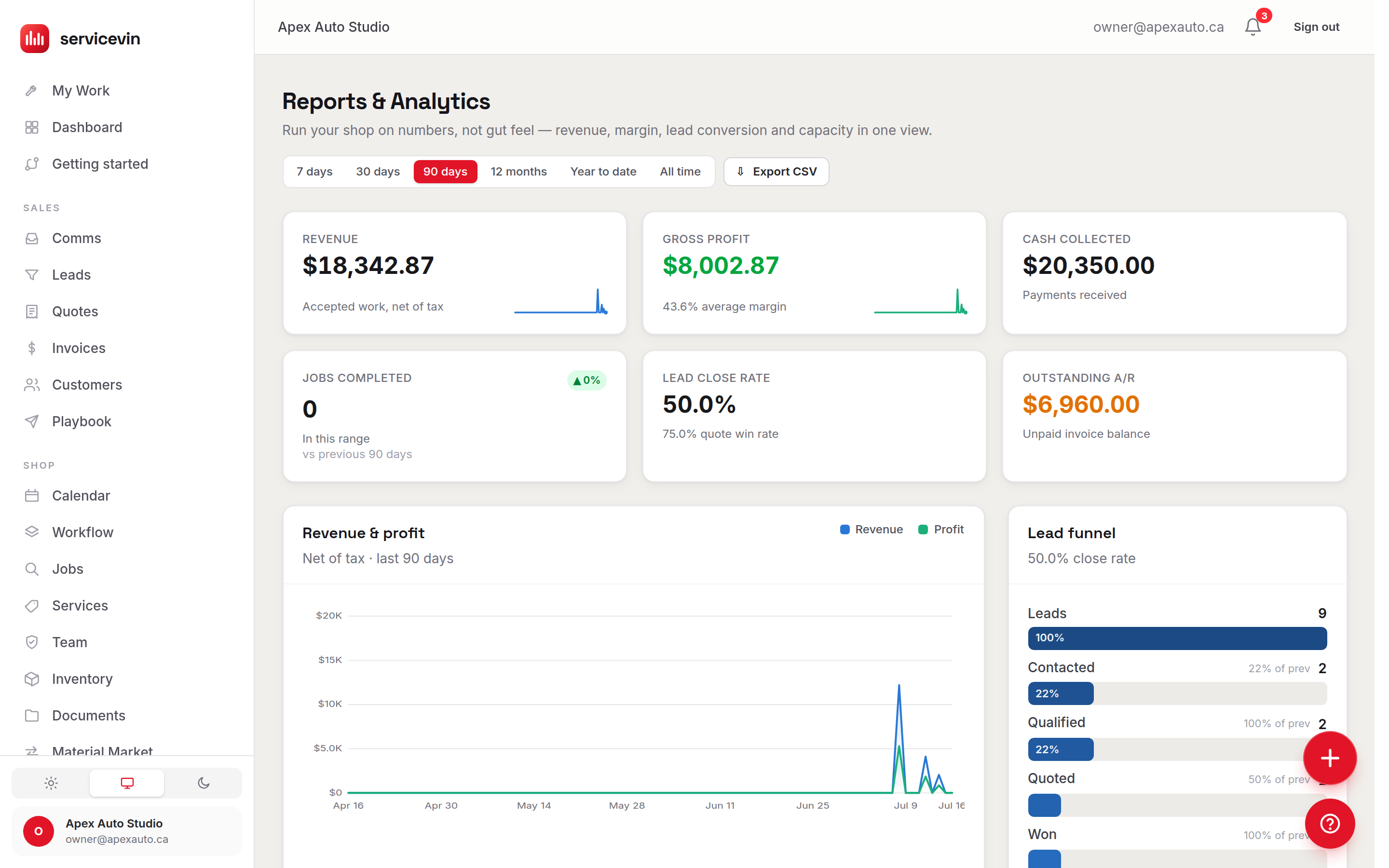
Insights is your AI Business Advisor. Where Reports hands you the live numbers to slice yourself, Insights does the reading for you: one run studies the last 30 days of quotes, jobs, customers, reviews and calls, scores the metrics that matter for your trade, and writes a short brief plus a handful of concrete suggestions. It's a manager-only page, and the AI run is on the Growth plan (each run spends AI credits) — the metric tiles themselves stay visible on any plan once a run exists.
The first time you open it, the advisor hasn't studied anything yet — you'll see an empty state with a single Run my first analysis button. Click it and the advisor reads your window, works out your industry lens, scores every metric, and writes its first brief. After that the page fills in: a pulse card at the top, suggestion cards in the middle, and the numbers those suggestions are grounded in at the bottom.
How a run works
- 1
Press Run analysis
Top-right of the page. The button reads Run my first analysis until you've done one, then just Run analysis. It shows "Studying your shop…" while it works — one run reads 30 days of your data and costs 10 AI credits.
- 2
Read the pulse
A one-line headline ("Revenue up 18% — win rate is the leak") and a 3–6 sentence summary written for you, with a small revenue-trend sparkline beside it. The label shows the run date and whether it was a manual run or the weekly auto-run.
- 3
Work the suggestions
Under What to do about it, each card is one lever: a Win, an Opportunity, or a Warning, tagged with its category and a concrete next step (the → line). Mark it Done or Dismiss it — and thumb it Helpful / Not helpful.
- 4
Check the numbers behind it
Below the advice, The numbers behind it is the exact snapshot the AI was grounded in — auditable, so you can see what it saw.
Your Done / Dismiss calls teach the next run
This isn't a report that forgets you. What you mark Done, what you Dismiss, and your 👍/👎 feedback all feed into the next run's prompt — that's the "learns your shop" loop. The advisor also keeps a running brief of the business between runs, so run N+1 is smarter than run N. The Industry lens card shows how many times it has studied your shop.
The industry lens is the one control that reshapes the whole page. Pick PPF & wraps, Window tint, Detailing & ceramic, or General auto services and save — it decides which metrics lead, which get a Key badge, and how the advice is framed (film waste matters for a wrap shop, repeat-customer rate for a detail shop). The advisor infers your lens automatically on the first run from your bays and service names; setting it yourself locks it, so it's never re-inferred away from your choice.
The metric tiles, by category
Each tile shows the value and a signed % change against the previous 30-day window — green when it moved the right way for that metric, red when it didn't (a rising missed-call rate is red; a rising win rate is green). Hover a tile to see the one-line reason it matters. Below the grid, three short lists round out the picture: Top services by revenue, Most-installed packages, and Top customers. A Data notes callout flags anything thin ("no calls logged yet", "job timers unused") so you know why a number might read low — the advisor sees those same notes.
Insights vs. Reports & Analytics
Same engine, two jobs. Reports is the live surface — you pick the window and read the current numbers yourself. Insights is a point-in-time snapshot the AI analyzed, kept verbatim so every run is auditable, wrapped in narrative advice and memory. The numbers on Insights match Reports exactly (snapshotted at run time). Use Reports to dig; use Insights to be told where to look.
Runs you resolve don't vanish — Recently resolved at the bottom lists what you've marked Done or Dismissed, newest first, so you can see the trail. A fresh run supersedes any untouched suggestions from the last one, keeping the feed to what's current.
Troubleshooting
The Run analysis button is disabled.
Why: AI advisor runs are on the Growth plan and your shop is on a lower tier.
Fix: Upgrade on Settings → Billing — the callout on the page explains what's included. Managers see the upgrade path; techs don't have access to this page at all.
Running the analysis returns "You're out of AI credits."
Why: Your credit balance hit zero, so the run was stopped before it charged.
Fix: Top up on Settings → AI & credits, then press Run analysis again.
A metric tile shows "—" with no change.
Why: There's no data for it in the window yet (e.g. no calls logged, timers unused), so the advisor can't compute it.
Fix: Nothing's broken — check the Data notes callout, which names exactly what's thin. Log the underlying activity and the tile fills in on the next run.
Common questions
What does a run cost?
10 AI credits per run. It's checked against your balance before the run and only charged on success, and a double-click can't double-bill. If you're out, top up on Settings → AI & credits.
Do the Insights numbers match my Reports?
Yes — they come from the same query engine, snapshotted at the moment the run happened. Insights shows what the AI saw; Reports shows it live. If they differ, it's just time passing since the run.
Can I change the industry lens after the first run?
Any time. Pick a new lens on the Insights page and save — it re-weights the metrics and reframes the advice on the next run, and your choice is locked so it's never re-inferred.
Does the advisor see other shops' numbers?
No. Every suggestion is grounded in your own data and your own running brief. It never sees another shop's data.