The softphone: calls from your dashboard & phone
Place and answer customer calls right in Service VIN with a headset — from your shop's own number, recorded, transcribed and summarized like every other call.
Sales & front office10 in this section
The softphone turns any open Service VIN tab into a phone. You place and answer customer calls right in the product with a headset — no separate cell ringing first — and to the customer it's still your shop's number on the caller ID. It rides the same Twilio rail as every other call, so everything downstream is identical: the call is recorded, transcribed, summarized, and drafted into AI follow-through. The softphone only changes how the audio connects — a browser tab instead of a phone.
Three ways a Call button can behave
Depending on your setup, a Call button does one of three things: softphone (dials from this tab), bridge (rings your phone first, then connects the customer), or a plain tel: link to your device dialer. This article is about softphone mode; the bridge is covered in AI Calling. Everything below assumes softphone mode is on — see the operator note for turning it on.
Place a call from your dashboard
- 1
Open the Inbox's Calls tab
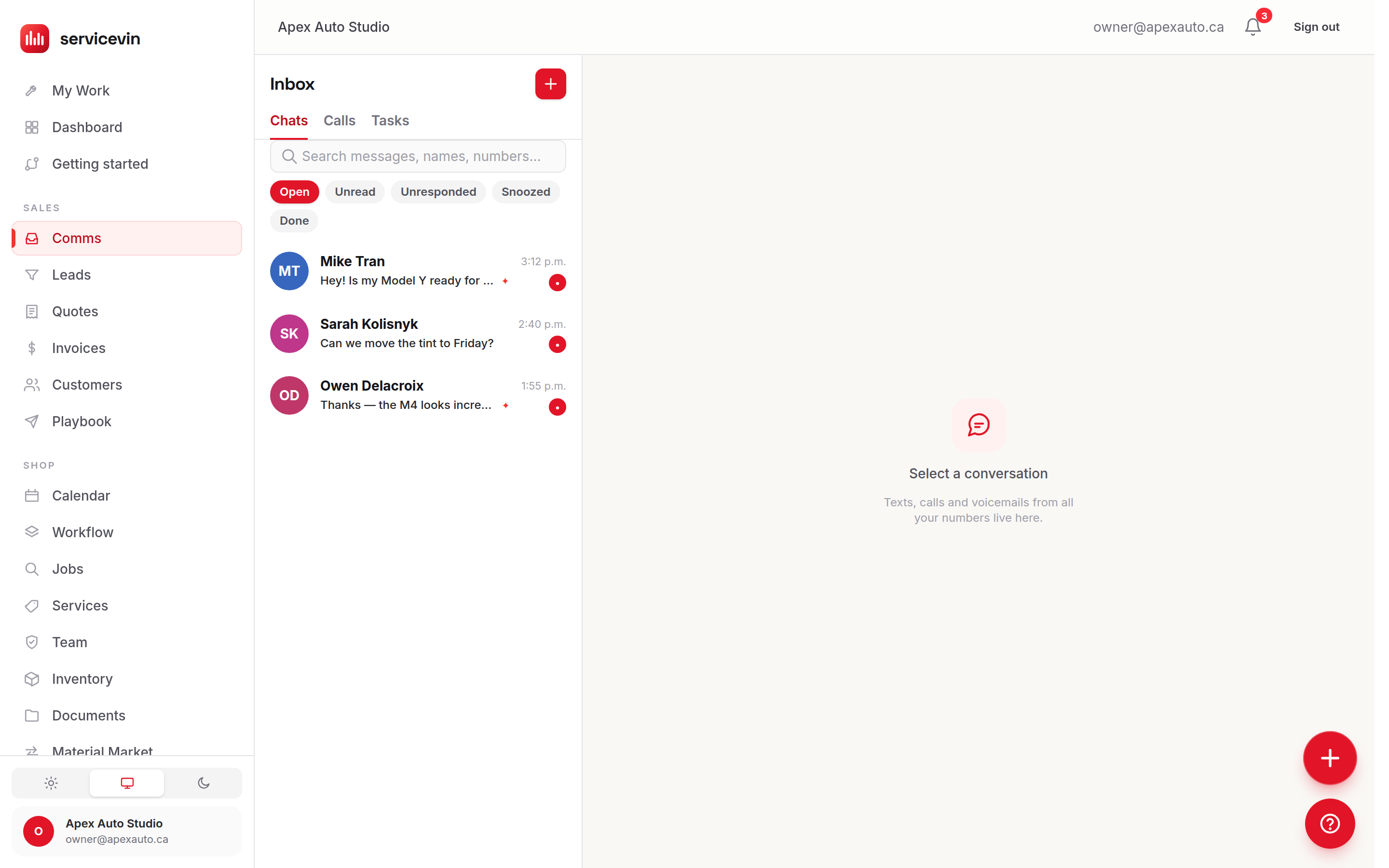
Open Inbox and pick the Calls tab. At the top is a Place a call box. In softphone mode its subtitle opens with "Straight from this tab with your headset" — and notes the customer still sees your shop's number.
- 2
Type the number and hit Call
Type the number however you like —
403 555 0134,(403) 555-0134,+1 403-555-0134, even one with an extension. The field echoes back what it will dial while you type, and nothing goes out until it parses. - 3
Talk from the call dock
A floating dock appears bottom-right showing Calling…, then Connected with a running timer once they pick up. You get Mute, a Keypad for touch-tone menus, and a red Hang up button. Minimize it to a small green pill and it keeps ticking.
You can also start a softphone call from a customer or lead's Call button elsewhere in the app — it dials through the same dock. The first call in a browser session asks for microphone permission; allow it once and you're set. Grant it and future calls connect straight away.
Answer an incoming call
- 1
Watch for the ring toast
When a customer calls your shop number and the softphone is on, a toast slides in from the top with the caller's name (matched to your customers) or number, plus Accept and Decline. A soft ring plays — no ringtone file to install.
- 2
Accept to talk in-browser
Click Accept (or just press Enter — focus lands on it) and the audio connects in the tab, moving into the same call dock as an outbound call.
- 3
Or let it fall through
Ignore or Decline it and after about 15 seconds the call falls back to your normal routing — the AI Voice Agent or your missed-call forward — exactly as if the softphone weren't there.
A tab has to be open to answer in-browser
The live call leg lives in the browser tab, so an incoming call can only be answered in-browser while Service VIN is open somewhere. If the tab is backgrounded and you've allowed notifications, you'll get a desktop "Incoming call" nudge — but a closed browser can't ring. That's fine: after ~15 seconds every unanswered call flows to your Voice Agent or missed-call text-back, so nothing is ever dropped.
The mobile app has its own softphone (a separate beta build), but the core idea is the same: same shop number, same recording and transcript pipeline. On a phone the call dock becomes a full-width bottom sheet.
Read the call afterward in the Calls tab
- 1
Find it in Recent calls
Every call lands in the log on Calls, newest first. A browser-placed call carries a Browser call badge; inbound/outbound, missed/completed and AI-answered are all badged too. Filter by Inbound, Outbound, Missed or Completed, and Load older calls pages back through the history.
- 2
Read the AI summary and sentiment
Once analysis runs, each row shows a one-line summary and a sentiment badge (Positive / Neutral / Negative) — a fast scan of how the call went.
- 3
Open the transcript or recording
Expand Transcript for the full text, or Listen to recording to play the audio. Recordings stream through an authenticated proxy, so the raw Twilio media link is never exposed.
Promises made on a call — "I'll text you a quote," "book me Tuesday" — are drafted onto the Inbox's Follow-ups tab, alongside everything else your agents are holding. Nothing sends until you open one and tap Approve & send. That's the Call Intelligence agent at work; the softphone just feeds it the same call data every other call does.
Troubleshooting
The Place a call box says to set up a phone, not "call from this tab."
Why: Softphone mode isn't active for your shop, so the page shows the bridge or tel behavior instead.
Fix: An owner turns it on under AI Agents → Call Intelligence (In-browser softphone). If the toggle's on but it still isn't calling from the tab, the deployment is missing the softphone setup — see the operator note above.
The call dock shows "Microphone access is blocked."
Why: Your browser is denying the mic for this site — a call can't send your audio.
Fix: Click the padlock/permissions icon in the address bar, allow the microphone for this site, then place the call again. HTTPS is required for mic access.
On my phone the customer can hear me, but I can't hear them.
Why: Phone browsers won't start audio unless the tap that began the call asked for it. The call is fine — your end just never started playing.
Fix: If the call dock is showing an amber Tap to turn on call audio button, tap it and that call will come through. Always start calls with the Call or Accept button rather than reloading into a call, and if you're on an iPhone note that call audio goes to the loudspeaker — Safari gives web apps no way to switch to the earpiece, so use headphones or Bluetooth if you need it private.
Incoming calls never ring in the browser.
Why: No Service VIN tab is open, notifications aren't granted, or the softphone toggle is off — the live call leg needs an open tab to answer in-browser.
Fix: Keep a tab open while you're on shift and allow notifications. Any unanswered call still falls through to the Voice Agent or missed-call forward after ~15 seconds, so you won't lose the customer.
"Browser calling isn't available" the moment I hit Call.
Why: The device never registered — usually a failed token fetch, no mic, or a flaky connection.
Fix: Reload the page to re-register, confirm your mic and internet, and check the address bar didn't block the mic. With a rep phone configured, the call quietly bridges to your phone instead.
Common questions
Does the customer see my personal number?
No. Outbound softphone calls dial with your shop's Twilio number as the caller ID — the same number customers already text and call. Your headset and browser stay invisible to them.
Do I need a headset, or will my laptop speakers work?
Either works, but a headset is strongly recommended — laptop mics and speakers create echo on a call. Any USB or Bluetooth headset your browser can use is fine.
What happens if my browser calling isn't available when I place a call?
You never fail silently. If the softphone can't take the dial (device didn't register, mic or network trouble) and a rep phone is configured, the call automatically falls back to the bridge — it rings your phone instead and tells you so. If no bridge is set up, you get a clear message to check your mic and reload.
Can I be on two calls at once?
No. If you try to place a call while already on one, the Place a call box tells you to hang up first. One live call per tab.
Are softphone calls recorded and transcribed like the rest?
Yes — identically. The recording, Voice Intelligence transcript, AI summary and follow-through drafts all run on softphone calls exactly as they do on bridged or AI-answered calls.
How do I use a phone menu (press 1 for…) during a call?
Open the Keypad in the call dock and tap the digits — they're sent as touch-tones to the other end.