Branding & message templates
Put your logo, accent colour and your own wording on everything customers see — portal pages, quotes, invoices, emails, PDFs and texts.
Settings & integrations10 in this section
Two pages control your shop's look and voice. Settings → Branding is the letterhead — a logo and an accent colour. Settings → Message templates is the wording — every outbound customer text and email, in your own words. Both apply immediately: new portal opens, PDFs and sends use the changes right away.
- 1
Pick an accent colour
A hex colour like
#1d4ed8. It becomes the top rule on documents and the button colour in your customer emails.
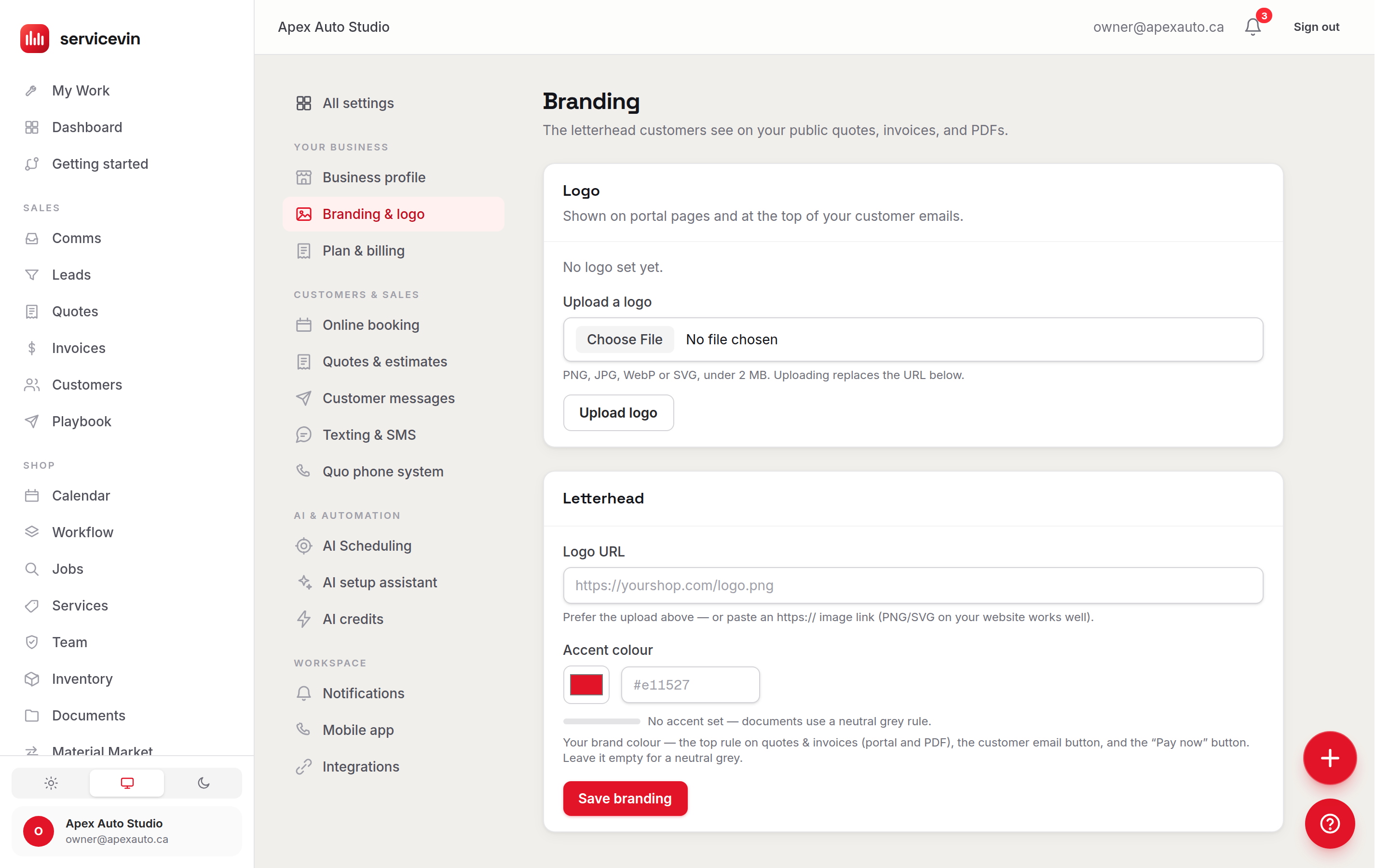
Where it shows: the customer portal (public quote, invoice and shared-document pages), emails (logo at the top, buttons in your accent), PDFs, the booking storefront and your lead forms — everywhere a customer sees you. The mobile app takes your logo too, but not the colour: the app carries the Service VIN palette at every shop, so there is no app accent to set.
Message templates cover five message kinds: quote send, invoice send, document share, booking confirmation and review request (the last two are SMS-only). Each editor has a live preview and a strict whitelist of variables you can drop in — things like {{customer_first}}, {{shop_name}}, {{quote_number}}, {{quote_link}}, {{total}} and {{balance}}, varying by kind. An empty template falls back to the built-in copy, so nothing changes until you deliberately reword a message — each card shows a Customized or Built-in badge so you can tell at a glance.
Tip
Unknown {{tokens}} are left verbatim rather than silently vanishing, so a typo is visible in the preview. And if an SMS template forgets its essential link variable (like {{quote_link}}), the link is appended automatically — a quote text can never go out without its view-and-approve link.
Troubleshooting
A variable prints literally as {{something}} in a real message.
Why: It's misspelled, or it isn't on that message kind's whitelist (each kind supports different variables).
Fix: Open the template editor and use the variable chips listed for that kind — the live preview shows exactly what will render.
The accent colour won't save.
Why: It isn't a valid hex colour.
Fix: Use the # form, e.g. #1d4ed8 — that exact format is what portal pages and emails render.
Common questions
How do I reset a template back to the default wording?
Clear the field and save. Empty means "use the built-in copy", and the card's badge flips back to Built-in.
Can I use HTML or formatting in templates?
No — SMS bodies are plain text, and the email fields are the subject line and the intro paragraph above the button. The surrounding email design comes from your branding.