Quotes that win (and protect your margin)
Build quotes with the margin computed live, send a link the customer can approve online — with optional add-ons, a Last Offer and a deposit — and let accepted quotes convert themselves.
Sales & front office10 in this section
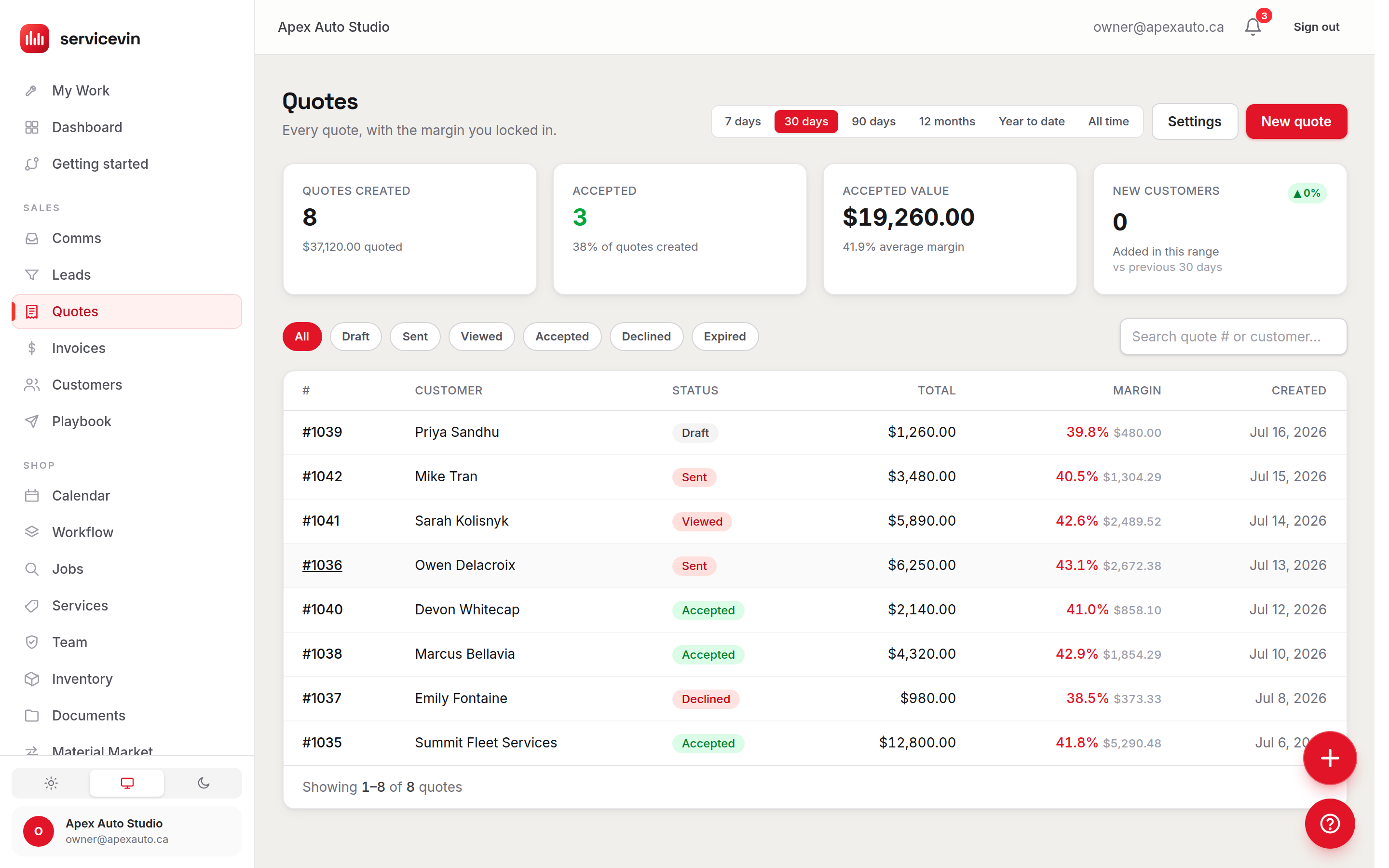
The Quotes list shows every quote with its status, total and — the part most tools hide — the margin you locked in, color-coded by health: green is healthy (50%+), blue is OK (30–50%), amber is thin (under 30%), red is a loss. The builder recomputes margin on every keystroke as you add service, material and custom lines, so you see profit before the customer sees a price.
The selling extras are on Growth and up
Package groups, tick-box optional and recommended lines, bundle savings and review clips on quotes are part of Growth. Every plan can build, send and get a quote approved — Essentials sends one flat total. If you were already using any of these before they moved, your shop keeps them: see Plan & billing.
Beyond lines and prices, a quote can carry the whole close: mark lines as optional add-ons the customer can tick on at approval, set a deposit to book, attach saved Google reviews for social proof, and arm a Last Offer — a discount shown only if the customer moves to decline. Add a customer-facing introduction, staff-only internal notes, and a Valid until date; common jobs can be saved as, and started from, a template.
Send quote to customer texts and/or emails a secure "view & approve" link to the customer portal, where they approve, pick add-ons, claim the Last Offer and pay the deposit (deposit payment needs Stripe configured). You can also copy the share link and send it yourself. A lapsed quote can't be sent or approved — use Extend validity on the quote page first.
Set your defaults once, in Quote settings
- 1
Open Settings → Quotes
Reachable from the Settings button on the Quotes page.
- 2
Default deposit
None, a percent, or a flat amount — seeded onto every new quote (editable per quote), with an optional "encourage the deposit to book" switch.
- 3
Introduction & default terms
The customer-facing copy every quote starts with.
- 4
Auto-convert accepted quotes
On by default: the moment a quote is accepted, Service VIN creates the invoice and an unscheduled job for it automatically. Turn it off to keep converting by hand.
- 5
Estimate reminders
Enable automatic follow-ups and set the cadence as days-after-sent marks (e.g.
3, 7, 14). Reminders re-send the approve link to quotes still sitting at sent/viewed.
Troubleshooting
Sending fails with "This quote's valid-until date has passed."
Why: The portal refuses to approve a lapsed quote, so the app won't send a dead link.
Fix: Use Extend validity on the quote page to pick a new date, then send again.
A customer accepted their quote but no invoice or job appeared.
Why: The auto-convert toggle is off, or was off when they accepted.
Fix: Open the accepted quote and use its Create invoice / Schedule job actions — and re-enable auto-convert in Settings → Quotes for next time.
Common questions
Can the customer see my costs or margin?
No. Costs, margin and internal notes are staff-only — the portal shows the customer prices, totals, optional add-ons and your introduction, nothing else.
What exactly is the Last Offer?
A walk-away saver: a discount (percent or amount, with an optional message) the portal reveals only if the customer starts to decline. Accept it and the quote closes at the reduced price; customers who approve normally never see it.
How do I know if the customer even opened the quote?
The quote page shows "Customer opened it …" once the link is viewed, and the status moves from Sent to Viewed.