The customer portal & garage: what your customers see
The branded, link-only pages your customers open on their phone — quote, invoice, job tracker, receipt and shared documents — plus the vehicle garage on every customer record.
Sales & front office10 in this section
Every quote, invoice, job and shared file you send opens as its own branded web page — your logo, your accent colour, your shop name — that the customer taps straight from a text or email. No app to install, no password to remember. And behind the scenes, every customer record keeps a Garage of that person's vehicles, each one a running file of specs, VIN, photos, jobs and warranties. Together they're your best sales tool: the portal is what a customer sees the moment they're deciding to say yes, and the garage is the memory that makes the next job effortless.
The portal pages live under the same letterhead and status language, so a customer who's seen your quote instantly recognises the invoice and the job tracker. Each one is a private link — an unguessable web address that is itself the only key. There's no login: anyone with the link sees the page, anyone without it can't, and the pages are marked no-index so they never turn up in a Google search. Links are how you share — send a quote or invoice from its page in the dashboard and the customer gets the link by text or email, wired into your message templates.
The five customer-facing pages
What a customer does on a quote
- 1
Open the link
They tap it from your text or email and land on the quote — your branding up top, prepared-for name, their vehicle and VIN, and the line items.
- 2
Choose and customise
If you built the quote with a package choice or optional add-ons, they pick and tick — the total and any deposit recalculate instantly, so there's no back-and-forth about "what's the price with ceramic?"
- 3
Sign to approve
They draw a signature and type their name to approve. That signature is captured and shown on the accepted quote — a real, dated yes you can point to later.
- 4
Pay the deposit (if you ask for one)
When a deposit is required, approval routes straight into card payment — the quote isn't confirmed as booked until the deposit lands. When you don't require one, approval is instant and, if you've turned it on, a yes becomes an invoice and a job automatically.
Why the links are safe to text
Each portal link is a long, random, one-off web address — practically impossible to guess, and it never appears in search results. It also isn't the whole account: a link only ever opens that one document, scoped to your shop, and it's rate-limited against abuse. Sensitive money actions (paying a deposit, paying an invoice) always confirm through the payment provider, never on the link alone.
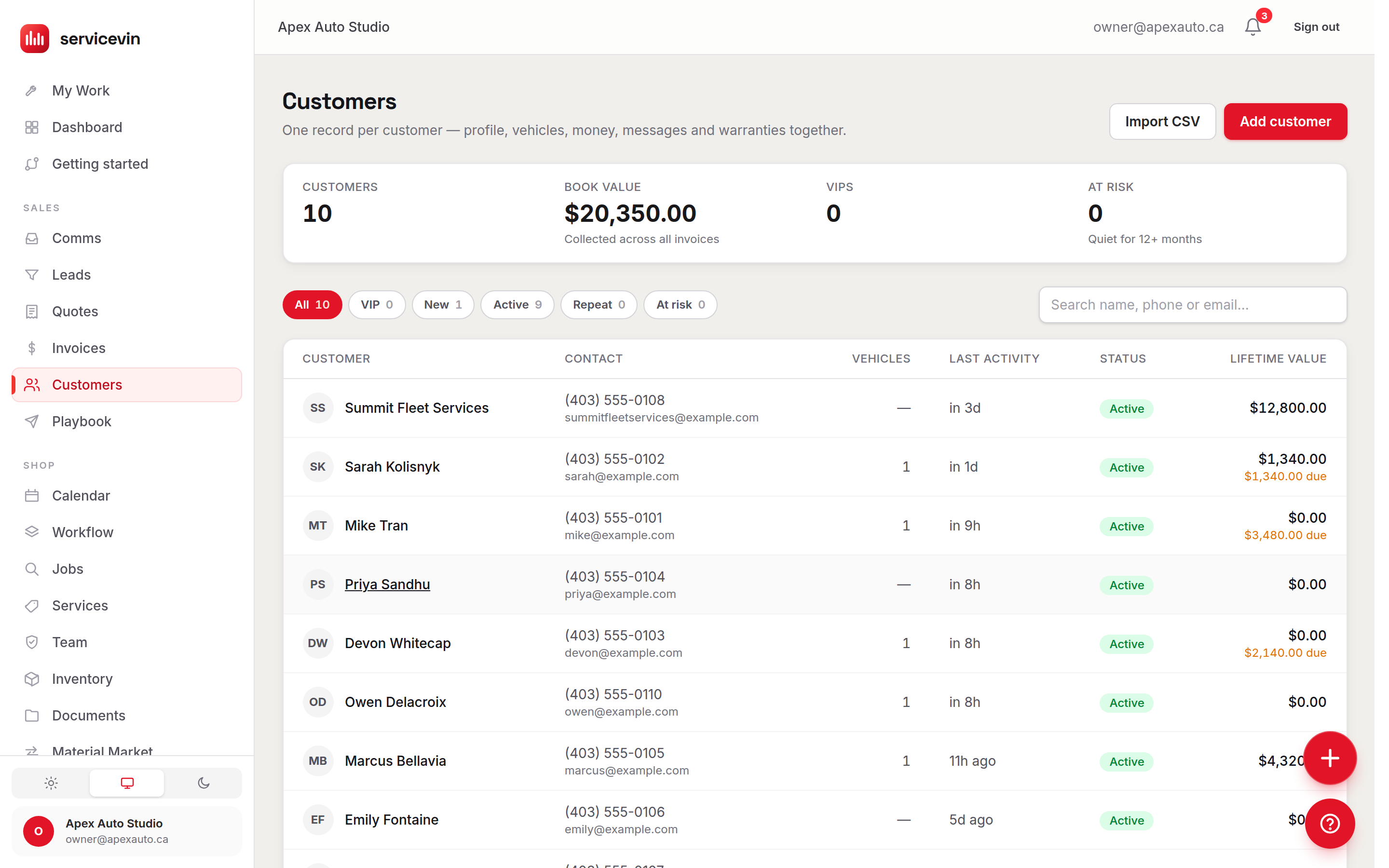
The Garage lives on every customer record — open a customer from Customers and it's the card of vehicle tiles, each showing a cover photo and quick counts of jobs, warranties and photos. Click a tile to open that vehicle's file: its Details (year, make, model, trim, type, colour, plate, mileage, body class and the full VIN, with a Decoded badge when the VIN was decoded for you), its Photos, every job ever done to it, its warranties, and any other files. It's the answer to "what did we do to this car last time, and what's still under warranty?" — in one place, forever.
Add a vehicle to the garage
- 1
Open Add vehicle
From the Garage card, + Add vehicle (also on the customer's + New ▾ menu). You can type the details, or let the VIN do the work.
- 2
Scan the VIN with your phone
Tap 📷 Scan and point the camera at the door-jamb sticker, dashboard plate or registration card. The 17-character VIN is read off the photo for you — no squinting, no typos. Or type/paste a VIN and hit Decode.
- 3
Let it fill the details
A read VIN is decoded into year, make, model, trim, body class and type automatically, and stamped Decoded. If the decode can't reach the lookup service, the VIN still fills and you type the rest — nothing is lost.
- 4
Add photos and warranties
Inside the vehicle file, Take photo (rear camera on a phone) or Upload photos files images straight onto the vehicle. Register warranty records what's covered and when it expires — it then shows on the vehicle's file with its coverage, expiry and a live status badge.
Snap the VIN at check-in
Scanning the VIN the first time a car rolls in takes seconds and pays off for years: the vehicle is decoded, every future quote and job auto-carries the right year/make/model, and the VIN prints on the customer's quote, invoice and job pages — a small detail that makes your shop look sharp.
Troubleshooting
The portal page looks generic — no logo or colour.
Why: Branding hasn't been set, so the page falls back to a plain default.
Fix: Upload your logo and pick an accent colour in Settings → Branding — new portal opens use it right away. See Branding & message templates.
A customer says the link says "This link isn't available."
Why: The document was deleted or voided, or too many requests came from one address in a short window (rate limiting).
Fix: Re-send the current quote/invoice from its page to generate a fresh link, and have them wait a moment before retrying.
The Pay now / Pay deposit button isn't there.
Why: Online card payment isn't set up for that document — your shop hasn't connected Stripe yet, or the invoice is already paid.
Fix: Connect your payout account on Settings → Payments — Pay now and Pay deposit appear once charges are enabled and there's a balance due. A paid invoice correctly shows no button. Walkthrough: Connect Stripe & get paid out.
Common questions
Do my customers need an account or password?
No. Every portal page is a private, unguessable link they open straight from your text or email — no login, no app. The link is the key, and the pages are hidden from search engines.
Can a customer sign and pay from their phone?
Yes — that's the whole point. On a quote they draw a signature, type their name to approve, and pay a deposit by card in the same flow. On an invoice they tap Pay now. The page updates to the paid state automatically once the payment settles.
What shows on the job tracker?
The appointment window, a live progress stepper from Booked through to Completed, and the status of each service on the job. It's read-only and carries a tap-to-call number — customers stop texting "is it ready yet?" once they can see for themselves.
If I remove a vehicle from the garage, do its jobs disappear?
No. Removing a vehicle takes it off the garage view, but its jobs and warranties stay on file — the confirmation says so before you remove it.
Does the VIN scan work on a computer too?
The camera scan is built for phones (it opens the rear camera). On a computer, paste or type the VIN and click Decode to fill the details the same way.